Running Hermes Agent on your laptop works for testing. For 24/7 automation — recurring tasks, Telegram commands that execute while you sleep, scheduled workflows that run whether your machine is on or not — you need a VPS.
This guide walks through the complete setup: provision a VPS, install Docker, deploy Hermes, connect it to Telegram, and configure your first model.
Quick Answer: Install Hermes Agent on a VPS by provisioning a $5–$10/month Linux server, installing Docker and Docker Compose, cloning the Hermes repo, setting your API keys in
.env, runningdocker-compose up -d, and connecting a Telegram bot token for remote control. Total setup time: 20–30 minutes for someone comfortable with a terminal.
What You Need Before Starting
- A VPS running Ubuntu 22.04 LTS (1 vCPU, 1GB RAM minimum — 2GB recommended)
- SSH access to the server
- An AI model API key (OpenRouter recommended — single key for 300+ models)
- A Telegram account (for remote control)
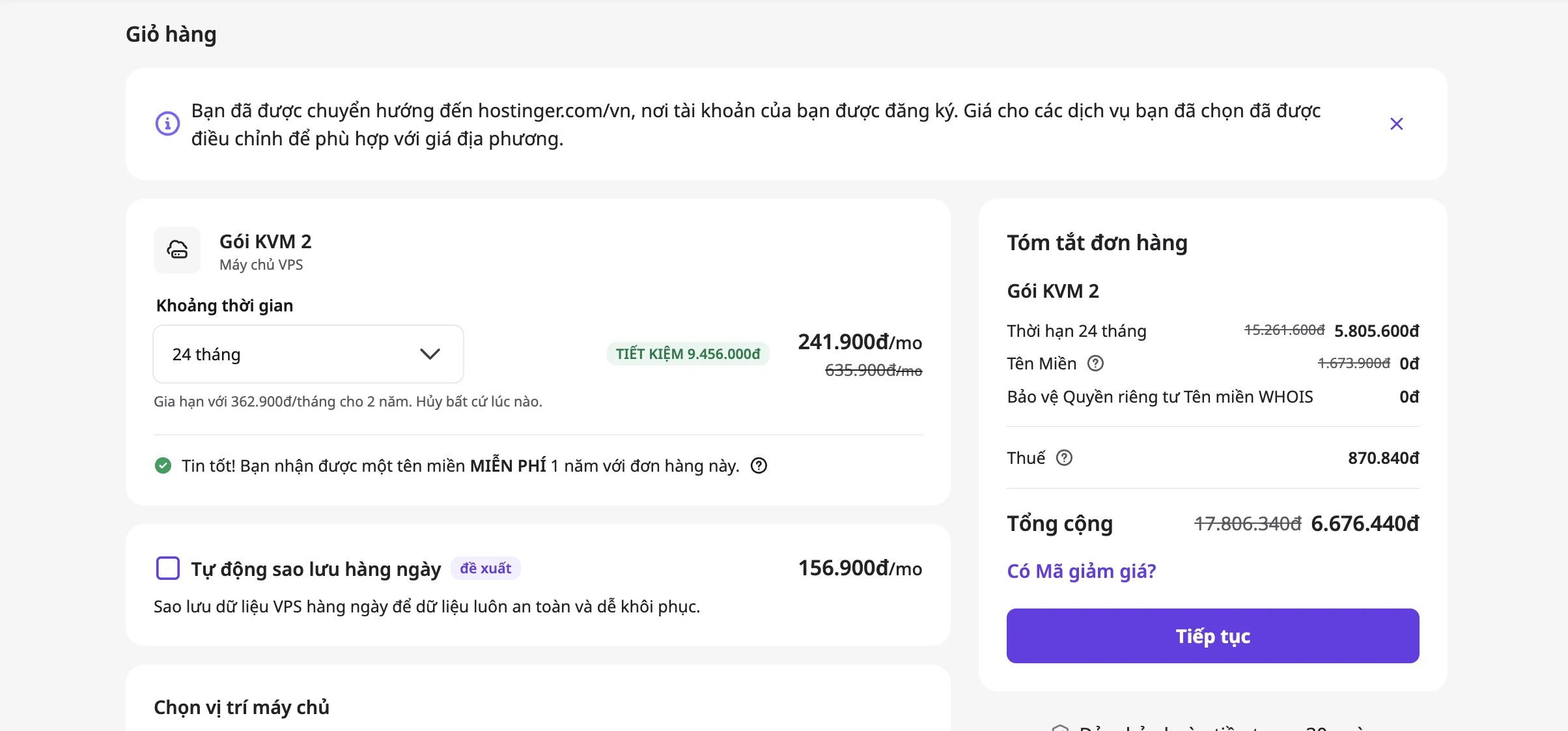
For VPS providers, Hostinger VPS ($5–$8/month) and Hetzner ($4–$6/month) both work well for solo operator Hermes setups. Avoid providers with restrictive outbound networking rules — Hermes makes frequent API calls.
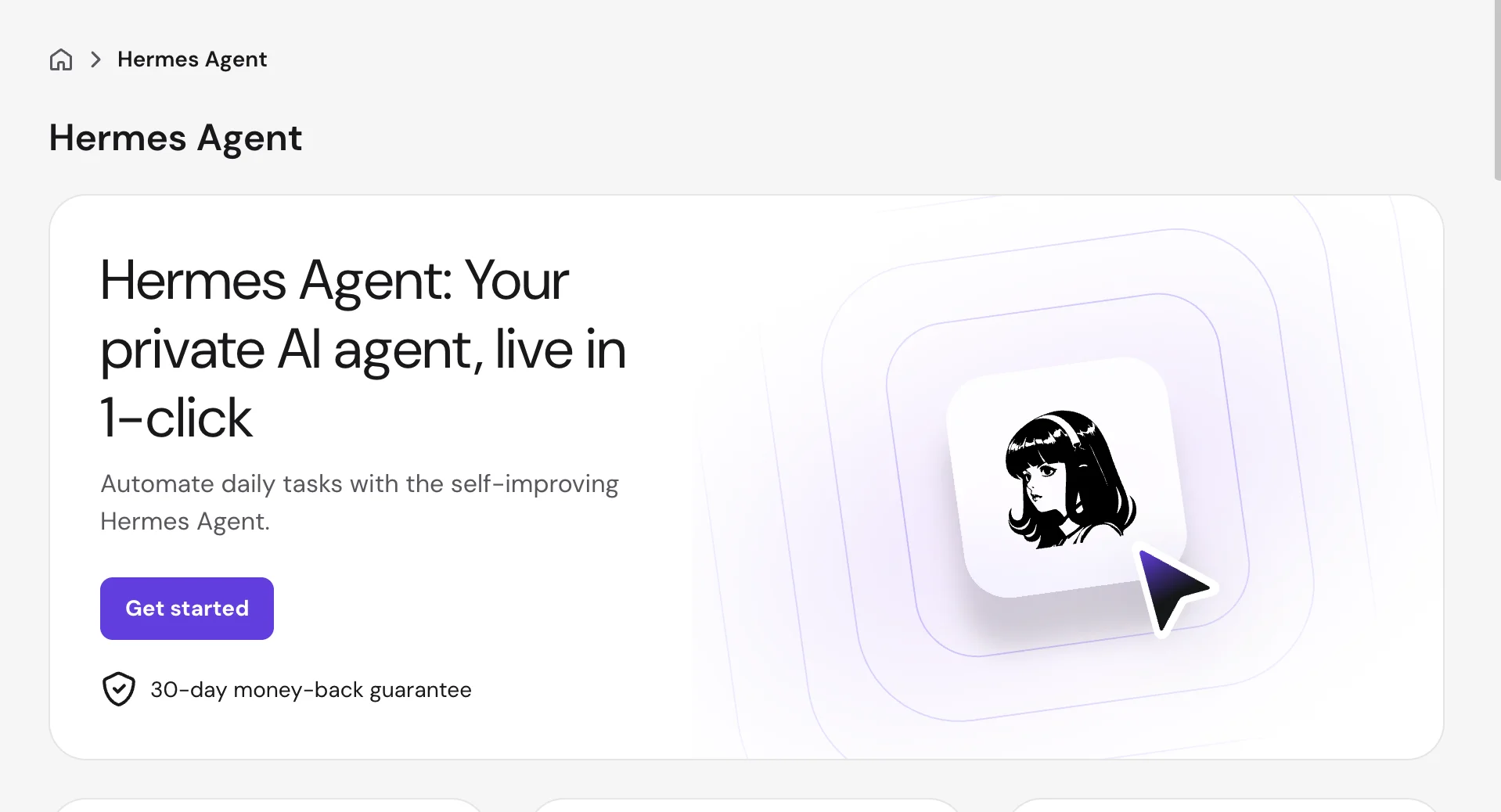
For Hermes Agent, Hostinger also offers a 1-click install directly from their marketplace — useful if you want to skip the manual Docker setup.
Step 1: Connect to Your VPS
From your local terminal:
ssh root@YOUR_VPS_IPIf you set up SSH key authentication during provisioning, no password is needed. If using password auth, enter your root password.
Update the system first:
apt update && apt upgrade -yStep 2: Install Docker and Docker Compose
Hermes Agent’s recommended deployment method is Docker Compose. Install it:
# Install Docker
curl -fsSL https://get.docker.com | sh

# Verify Docker is running
docker --version

# Install Docker Compose plugin
apt install -y docker-compose-plugin

# Verify
docker compose version
Add your user to the docker group (so you don’t need sudo for every command):
usermod -aG docker $USER
newgrp docker
Step 3: Clone the Hermes Agent Repository
# Install git if not present
apt install -y git

# Clone the repo
git clone https://github.com/NousResearch/hermes-agent.git
cd hermes-agent
Check the repository structure:
ls -laYou should see docker-compose.yml, a src/ directory, and configuration files.
Step 4: Configure Your Environment
Copy the example environment file:
cp .env.example .env
nano .env
The critical fields to configure:
# AI Model Provider — OpenRouter gives access to 300+ models with one key
OPENROUTER_API_KEY=your_openrouter_key_here

# Default model to use (can be changed per-task)
DEFAULT_MODEL=anthropic/claude-sonnet-4-5

# Telegram bot token (get this from @BotFather on Telegram)
TELEGRAM_BOT_TOKEN=your_telegram_bot_token

# Your Telegram user ID (get from @userinfobot on Telegram)
TELEGRAM_ALLOWED_USERS=your_telegram_user_id

# Optional: Set timezone for scheduled tasks
TZ=Asia/Ho_Chi_Minh
Save and exit: Ctrl+X, then Y, then Enter.
Getting your OpenRouter API key: Sign up at openrouter.ai, navigate to API Keys, and create a key. OpenRouter’s pay-per-use pricing means you pay only for the tokens you use — no monthly subscription required.
Step 5: Get a Telegram Bot Token
If you plan to control Hermes via Telegram (recommended for 24/7 VPS operation):
- Open Telegram and search for
@BotFather - Send
/newbot - Choose a name (e.g., “My Hermes Agent”)
- Choose a username ending in
bot(e.g.,my_hermes_2026_bot) - BotFather sends you a token — copy it to
TELEGRAM_BOT_TOKENin your.env
To get your Telegram user ID:
- Search for
@userinfoboton Telegram - Send
/start - It returns your numeric user ID — paste it into
TELEGRAM_ALLOWED_USERS
This TELEGRAM_ALLOWED_USERS field restricts who can send commands to your agent — only accounts with matching user IDs can interact with it.
Step 6: Start Hermes Agent
# Start in detached mode (runs in background)
docker compose up -d

# Check that the container started
docker compose ps

# Watch the startup logs
docker compose logs -f
On first start, Hermes pulls required dependencies and initializes its SQLite memory database. This takes 2–3 minutes. You’ll see confirmation in the logs when it’s ready.
Step 7: Verify Telegram Connection
Open Telegram and find your bot (search the username you created in BotFather). Send:
/startHermes should respond with a welcome message and its current status. If you see no response after 30 seconds:
# Check logs for errors
docker compose logs hermes | tail -30
Common issues at this stage:
- Invalid bot token — double-check the token in
.env, no trailing spaces - Unauthorized user — verify your
TELEGRAM_ALLOWED_USERSID is correct - Container crashed — check logs for missing environment variables
Step 8: Send Your First Task
With Hermes connected via Telegram, try a simple test:
Summarize today's top 5 AI news storiesHermes will acknowledge the task, perform web research (if Firecrawl is configured), and return a summary. The first response may take 30–60 seconds depending on the model you’re using.
Test a skill-building task:
Review the code in this snippet and suggest improvements: [paste code here]After completing complex tasks, Hermes generates SKILL.md files in its memory store. Future similar requests will benefit from this cached reasoning.
Step 9: Configure Smart Routing (Optional but Recommended)
Smart Routing lets you specify which model handles which type of task — saving cost by routing simple tasks to cheap models.
In your .env or Hermes config:
# Fast, cheap model for simple tasks (summarization, classification)
FAST_MODEL=google/gemini-flash-1.5

# Default model for general work
DEFAULT_MODEL=anthropic/claude-sonnet-4-5

# Powerful model for complex reasoning (used sparingly)
POWER_MODEL=anthropic/claude-opus-4-5
Hermes automatically determines task complexity and routes accordingly. This is how operators reduce API costs by 70–90% compared to routing everything to a premium model.
Step 10: Set Up a Scheduled Task (Cron)
Test Hermes’s natural language scheduling by sending via Telegram:
Every morning at 7am, summarize the top AI news and send me a digestHermes interprets this, creates an internal cron job, and will execute the task automatically at the specified time — no cron syntax required.
To view active scheduled tasks:
/tasks listTo cancel a task:
/tasks cancel [task-id]Step 11: Secure Your VPS (Recommended)
Before leaving your VPS running headlessly, apply basic security:
# Configure firewall — allow SSH and necessary ports only
ufw allow ssh
ufw allow 22/tcp
ufw enable

# Disable root SSH password login (use key auth instead)
sed -i 's/#PasswordAuthentication yes/PasswordAuthentication no/' /etc/ssh/sshd_config
systemctl restart sshd
For a complete overview of the agent’s capabilities, see the companion guide What Is Hermes Agent?.
Keeping Hermes Updated
cd hermes-agent

# Pull latest changes
git pull origin main

# Rebuild and restart
docker compose down
docker compose up -d --build
Check the GitHub releases page for breaking changes before updating production instances.
Useful Docker Commands
# View running containers
docker compose ps

# View real-time logs
docker compose logs -f

# Restart Hermes
docker compose restart

# Stop Hermes
docker compose down

# Check resource usage
docker stats
Troubleshooting Common Issues
Container keeps restarting:
docker compose logs --tail=50Usually a missing or malformed environment variable. Check your .env file.
Telegram commands not responding:
Check TELEGRAM_ALLOWED_USERS — your user ID must match exactly. Get it fresh from @userinfobot if unsure.
API calls failing: Verify your OpenRouter key is active and has credit. The free tier may have rate limits that cause timeouts on complex tasks.
High memory usage: Increase your VPS RAM to 2GB if running complex multi-step workflows. SQLite memory operations scale with task history size.
What to Try Next
With Hermes running on your VPS and connected to Telegram, you have a 24/7 autonomous agent ready to deploy. The practical next steps:
- Install skill packs from the Skills Hub for your use case (marketing, dev workflow, research)
- Configure OpenRouter model routing to optimize cost per task type
- Set up your first scheduled workflow using natural language cron
For AI model access, OpenRouter is the recommended provider for Hermes deployments — one API key, 300+ models, pay-per-use pricing with no monthly commitment.
FAQ
What VPS specs do I need for Hermes Agent?
Minimum: 1 vCPU, 1GB RAM, 10GB storage. Recommended for smooth operation with memory-heavy workflows: 2 vCPU, 2GB RAM, 20GB storage. Most solo operator setups run comfortably on a $5–$10/month VPS.
Can I run Hermes Agent without a VPS?
Yes — you can run it locally on Mac, Windows, or Linux. The limitation is that local setups only run when your machine is on. For 24/7 automation and scheduled tasks, a VPS is needed.
Does Hermes Agent work with free AI models?
Yes, via OpenRouter, Hermes can access free-tier models like Qwen and certain Gemini variants. For production use with complex reasoning tasks, a paid API key is recommended for reliability and rate limits.
How do I back up my Hermes data?
The SQLite database and SKILL.md files are stored in the data/ directory inside the Docker volume. Back up this directory regularly:
docker compose exec hermes tar -czf /tmp/hermes-backup.tar.gz /app/data
docker cp hermes_container:/tmp/hermes-backup.tar.gz ./hermes-backup-$(date +%Y%m%d).tar.gz
Is it safe to run Hermes Agent on a VPS?
With proper configuration — Telegram allowed users list, firewall rules, and running in Converse Mode for sensitive operations — yes. Never expose Hermes’s API port publicly. The TELEGRAM_ALLOWED_USERS whitelist is the primary access control layer.
Can multiple people share one Hermes instance?
Yes. Add multiple Telegram user IDs to TELEGRAM_ALLOWED_USERS (comma-separated). Each user interacts with the shared agent. Note that memory and skill files are shared — which is a feature for team setups, but be aware that one user’s tasks can build context visible to others.